


Saturday, September 16, 2006
Tutorial: Backup Your Flickr Photos Easily

Normally, you don't need to backup your Flickr photos since you probably already have them on your computer. However, if you upload a lot of photos from your cell phone, then backing them up is essential if you're concerned about accidentally deleting them or losing access to your account. Luckily, there's a simple tool you can use to backup your photos: Flickr Backup.
1. Download Flickr Backup for Windows. Choose any server and click Download. If you need the Mac version, get it here. The platform independent one is here.
2. Unzip the file and double click on the Flickr Backup application. This should open up a window in your browser where you can login to your Flickr account. Enter your username and password.
3. Click Ok, I'll Allow It so the backup program can access your photos.
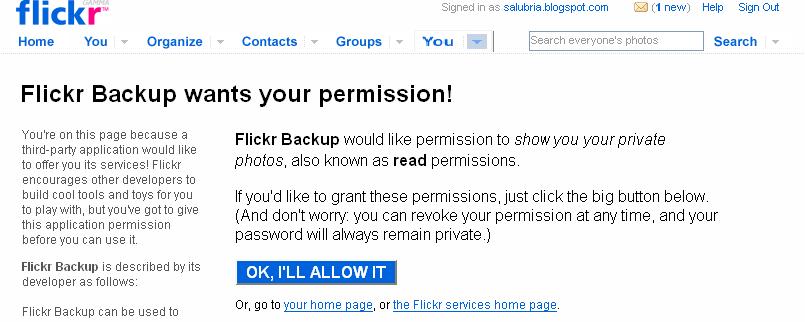
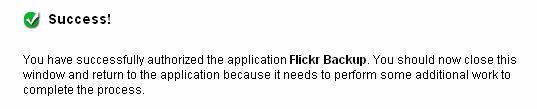
4. If you're successful, you will see the following. Now, go back to Flickr Backup and you should see thumbnails of your photos.
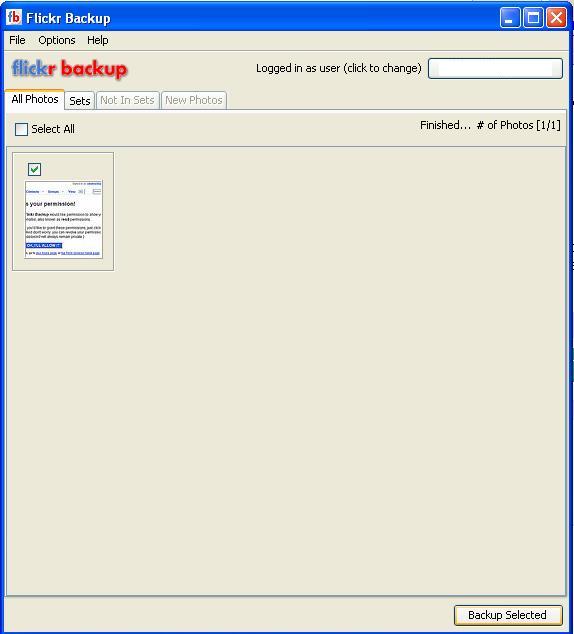
5. Click Select All if you want to backup all of your photos or click the box next to each photo individually if you want to be selective. You can also backup based on Sets, which might save you some time. Unfortunately, this can be time consuming if you have a lot of photos to sort through. Click Backup Selected at the bottom once you are done.
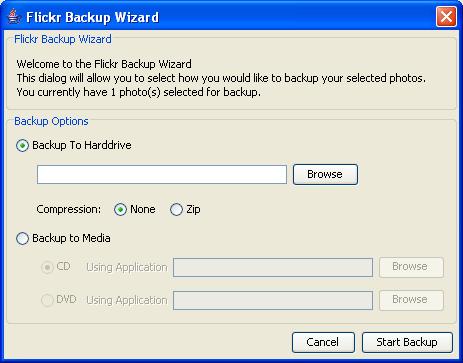
6. You can choose to backup to your hard drive or to a CD or DVD. You can even choose to compress the photos as Zip files if you want to save space. Choose a directory to store the photos and click Start Backup.
7. And you're done.
Technorati Tags:
Labels: Technology


Friday, September 15, 2006
10 Tips for Dealing with Information Overload
These sites offer the promise of helping you filter through all the information on the web, but they still aren't enough. I know people who monitor literally hundreds of RSS feeds on a daily basis, and they don't look so good. Here are some essential tips that I've personally used to avoid information overload:
1. Spend some time culling the feeds from your RSS reader. There are probably some that you haven't looked at in two months, but you still keep them because there's a chance you might still want to check in sometime. The truth is you probably won't so get rid of them.
2. Reduce clutter. Clutter takes up space and steals your attention. Create a temp folder on your Desktop where you can put files that you intend to only use for a day, a week, or however long you decide. Then feel free to delete them at the end of the period.
3. Don't check the news obsessively. It's all right if you don't keep on top of all the things that are going on in the world. If it were really important your friends or co-workers would probably mention it to you.
4. If you want to check the weather, get stock quotes, read a Dilbert comic, and see what's new at Boing Boing and Engadget, start.com is a good place to start off. This is a very fast, well-designed site. Small windows open up when you click on articles without taking you off the site. It's good for a quick, 10 minute morning browse while you try to gear up for the day.
5. If you're addicted to digg, Slashdot, and del.icio.us, consider using Diggdot.us which combines all three.
6. If you want to satisfy an urge to see what random things have caught people's eyes, try clipmarks, which allows you to quickly scan through brief excerpts of interesting things. The important thing is to limit the time you spend checking out what's new.
7. Get Sessionsaver to save the windows and tabs you currently have open. You can archive the sites that you go to every day for news like TechCrunch and GigaOm and import them every time you start up Firefox to automatically have those sites open.
8. Pre-sort your mail. If you are using Gmail, you can use plus-addressing and filters to automatically send incoming mail into the appropriate folders.
9. Don't take your work cell phone home with you. You're not paid enough to be on call 24/7.
10. Take a break every hour or so. Spend 5 minutes getting a cup of tea or coffee and relax away from the keyboard.
Labels: Technology
Findory: Your Personalized Newspaper and More

Findory is based on an interesting concept: "The more articles you click on, the more personalized your Findory homepage will be!" They don't go into too many details on their "Personalization Technology", but it apparently works by looking at your reading history (what articles you click on) as well as what other readers look at. If this sounds similar to Amazon.com's personalized recommendations and "Customers who bought this item also bought" feature, that's because the founders used to work at Amazon. The plus side is that you can use Findory anonymously.
As I clicked through articles on the site, I could literally see the news items, videos, and podcasts shifting in real time in response. Very impressive. You can even add specific blogs to Findory on their "Add a Blog" page.
There are a lot of parallels to Yahoo's Mindset search algorithm that allows you to filter search results based their commercial or research content. In Findory, you get to train the algorithm to fit your needs. My only concern is that the algorithm isn't adaptive enough. It works well when you're only interested in a narrow area like robotics or U.S. politics, but if you mix and match your clicks on climate, genetics, Iraq, Mozilla, and MySpace, then the algorithm may get "confused". Still, given the vast amount of information that is out there, Findory is a valuable tool in filtering through it all.
Findory
Labels: Technology
Thursday, September 14, 2006
goowy: A Full-Featured Webtop

goowy is a very slick webtop with IM, mail, calendar, games, and file storage all mashed together. It's much more full featured than the webtop that came with 30 Boxes and makes extensive use of Flash. The benefits are obvious from the quick response of the menu and beautiful design. Demoing the site, I took a detour into the games section and got sucked into a classic game of Asteroids. There are a lot of fun classic games so if nothing else go there to relive some memories.
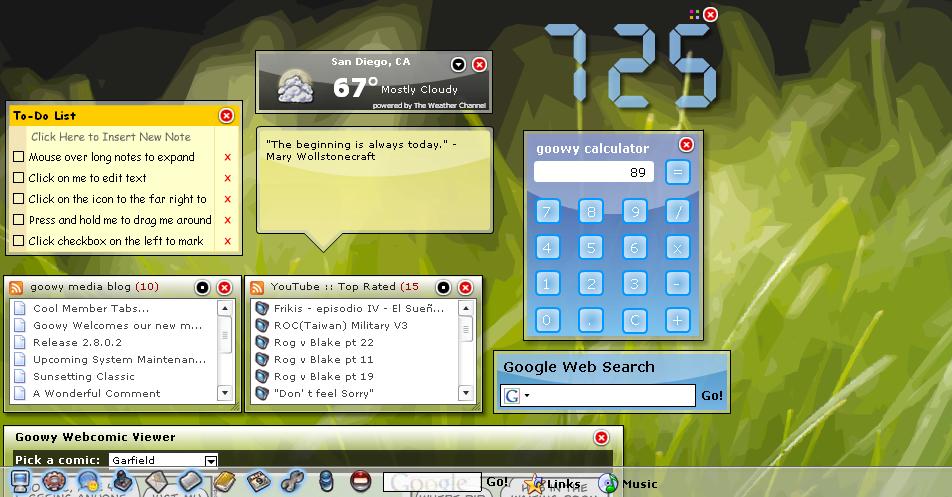
You get 1GB of file storage which isn't much compared to Xdrive's 5GB, but should be enough for modest needs. The webtop is highly customizable by going into the options menu. You can POP into your emails from your Gmail, Yahoo, or MSN accounts.
goowy isn't a desktop replacement, but it does come close especially if you have no need to install programs or save files. It's probably most handy for times when you want to travel without lugging around a laptop. You can import your contacts and calendar into goowy as well as upload important files and access them on the go.
goowy // Demo it
Labels: Technology
Mindset: Yahoo Applies Machine Learning to Search

Yahoo! Mindset is a very promising concept that utilizes machine learning to determing if pages are commercial or scholastic. Specifically, an automated text classifier was trained to distinguish between the two categories of pages and can dynamically sort through search results. The two researchers who developed it joined Yahoo! after its acquisition of Overture so this project has definite commercial search applications.
I performed a search on "harry potter" and initially got a page with standard Yahoo! search results. Topping the list were the offical Harry Potter movie site and J.K. Rowling's page.
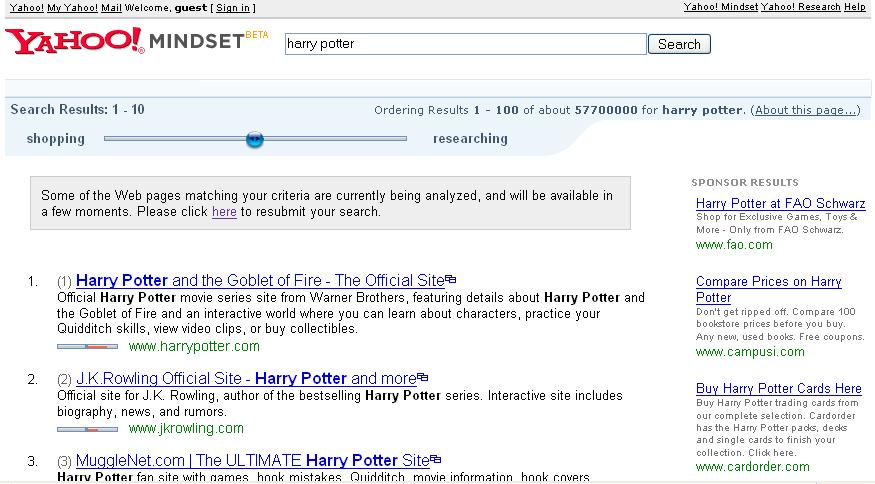 I dragged the slider at the top of the search results to the left toward "shopping" and the results dynamically resorted themselves. Handily, the results also displayed the original rankings in parentheses to the left.
  The original number 30 and 20 search results jumped up to take the second and third spots, respectively. The Scholastic and EA games sites could be considered more commercial than the movie and author sites, and it's interesting to see the Swedish version of the official movie page displace the English one.
Pulling the slider to the right toward "researching", I got fan fiction and fan sites near the top of the results. These sites are clearly not commercial so it appears that Mindset is at least good for a rough filtering of search results.
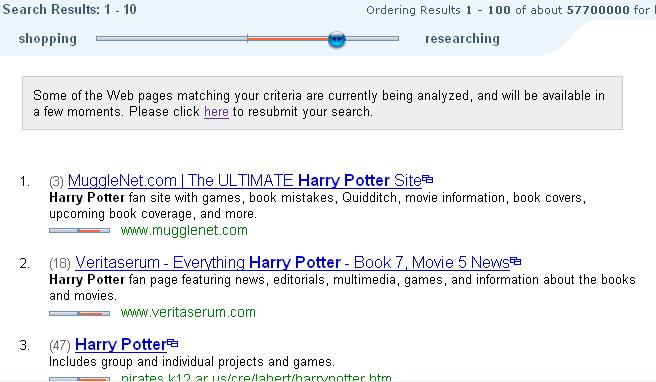 Based on just this one search, Yahoo! Mindset appears to be a keeper. It's certainly not perfect, but it is a good first-pass filter. For students, researchers, and others who need more objective search results, it'll help weed out shopping and other commercial sites. And for others, it'll help those who actually want to buy something or want to find "official" websites.
Yahoo! Mindset
Labels: Technology
One Simple Tip to Open PDF Documents Fast
A more permanent solution that doesn't require holding down the Shift key every time is to move the plug-ins you don't think you'll need to another folder you can create like plug_ins_noload. Plug-ins are probably located in a directory path like C:\Program Files\Adobe\Acrobat 6.0\Reader\plug_ins. The version number may differ, and you might have Adobe Acrobat installed instead. The plug-ins are the files with .api extensions. When you open up Acrobat, go to Help->About Adobe Plug-Ins to look through the list of plug-ins and their functions. Move the ones you don't need to the plug_ins_noload folder, and you'll see a significant speed-up.
Labels: Technology
Wednesday, September 13, 2006
imeem = Instant Messaging + YouTube + MySpace

imeem has an interesting product that combines IM and social networks. Like Trillian, imeem has a software client that can connect to AIM, MSN, and ICQ, but it also supports GoogleTalk, allows you to share videos and pictures with your buddies, and hosts blogs. The team behind the site share a musical background: one worked at Napster in charge of DRM, one's a musician ("more than an instrumental part of the team"), and the third worked at EMI Music. imeem is not a revolutionary piece of software, but it does make it easier to interact and share with your friends with its all-in-one design.
It has the potential to fill a space that YouTube and Myspace have left wide open by creating tighter knit groups that don't want to invite the whole world into their group, but don't want to exclude them either. The IM aspect of the service definitely helps with the sense of "hermiticity". The major selling point is simply the convenience of having everything in one place for your friends to pour over: imeem contains the highlights of all the Web 2.0 sites with tagging, blogs, videos, and pictures. The member page design is also easier to look at without a lot of annoying pop-ups or flashing colors a la Myspace.
imeem
Technorati Tags:
Labels: Technology
Yahoo! Video: Conduct Very Specific Searches
Find a Lonelygirl15 video with a filesize greater than 10 megabytes (convert to bytes with the calculator here)
lonelygirl15 filesize:>10485760
Find a 9/11 video longer than 4 minutes (convert minutes into seconds)
9/11 duration:>240
Find a Naruto video that has an aspect ratio of 16:9 (16 divided by 9 times 100 equals 177)
naruto aspect:177
For 4:3 ratio [(4/3)*100=133]
naruto aspect:133
Find a video with the title "harvest" in the filename
title:harvest
Find a video that is linked to by a page with the title "harvest"
fromtitle:harvest
Find a Keith Olbermann video that is linked to by a .org domain
keith olbermann fromtld:org
Find a Hurricane Katrina video hosted on a .com domain
hurricane katrina tld:com
Find a South Park video modified before January 1, 2005 (Convert a Date/Time to a Unix timestamp, which is number of seconds since January 1, 1970)
south park date:<1104537600
Yahoo! Video
Labels: Technology
Remember the Milk: Spam Me with Tasks

Remember the Milk is probably the most clever sounding of all the task management sites I've seen. There are various lists you can place your tasks under: Inbox, Personal, Work, and Study. You can also add Contacts to whom you can send or share tasks.
The thing that has the most potential though is the geo-tagging feature that allows you to map the location of a task. You can add a location by just clicking on a map and naming it. To fully take advantage of it though, Remember the Milk needs to add the ability to create a custom itinerary of your tasks. Say you want to go shopping at Whole Foods at 10 a.m., work out at 24 Hr. Fitness at noon, eat lunch at The Cheesecake Factory, and then grab a book at Borders. It'd be great if you could map those locations and print out driving directions. Maybe you can make your trip more efficient and save some gas money. This feature is most useful though if you're traveling in a new city, maybe on a business trip or vacation, and you want to make sure you're maximizing your time.
I think the most interesting feature that they currently have is the ability to spam people with tasks to do. Here's the text of the confirmation e-mail:
Your Inbox email address is: filter.feeder+99db65@rmilk.com (anything you email here will automatically become a task in your Remember TheYou'll notice they use the plus-addressing I talked about in my Gmail post. So, if you want to help me build up a long list of tasks like what tips or hacks you want me to write about or if you just want to pile on more work, please feel free to email that address. I'll make the list public once I get a fair number of tasks listed.
Milk Inbox)
Labels: Technology
Tuesday, September 12, 2006
StumbleUpon Random Websites
 Surfing to the same websites everyday can be very boring. StumbleUpon is a cool extension that sends you to a random website based on your surfing preferences, your friend's recommendations, and people who share your interests.
StumbleUpon installs a toolbar in FireFox or InternetExplorer. To get started, just click Stumble. You can also choose to Stumble on sites that are in a particular category like videos, news, or wikis. When you see a site you like, click "I Like It." If the site you stumble upon is not to your liking, click on Not-for-me.
 StumbleUpon allows you to invite your friends to Stumble with you. When you click the Friend button, you can enter your friends' email addresses.
See what other people liked by clicking on the Page Reviews button.
Labels: Technology
AutoSave Your FireFox Session With SessionSaver
- FireFox crashes
- FireFox freezes
- Your laptop battery runs out
SessionSaver automatically saves what you have open in FireFox as your browse so that the next time you open FireFox, you have your FireFox tabs exactly as you had them the last time you used it. SessionSaver saves and protects your work so that you no longer lose your desktop when bad things happen. It works in the background, so you won't notice it. It's kind of like a FireFox backup tool.
Installing SessionSaver
Go to Mozilla to install SessionSaver. Click on "Install Now." After your installation completes, Quit FireFox and restart.

Configuring SessionSaver
There are two modes for SessionSaver.
1. Simple Menu
SessionSaver automatically restores your tabs when you open FireFox. You also get Crash Recovery.
 2. Expert Menu
SessionSaver automatically restores your tabs when you open FireFox. You also get Crash Recovery. SessionSaver asks you first before restoring.
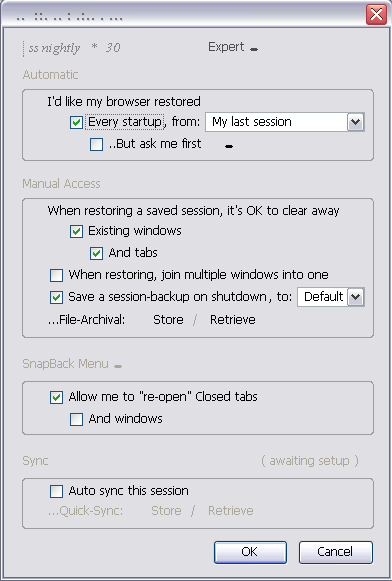 Sync your sessions across different computers.
SessionSaver will ask you to specify an FTP site or Apple iDisk to save your session information. Your session will be saved to a remote server.
Try SessionSaver. Or read more about the technical specs and functionality of SessionSaver.
Labels: Technology
Simple Windows XP Tips
Take a screenshot:
1. Press Prnt Scrn to get the entire screen or press Alt+Prnt Scrn to only capture the active window
2. Open up Paint by going to Start->All Programs->Accessories->Paint and go to Edit->Paste.
To get system information like your hardware rosources, internet setting, and installed components, go to Start->Run->type in "msinfo32"
Get your IP address, go to Start->Run->type in "cmd" to open the DOS command window->type in "ipconfig /all"
See tasks and programs that are currently running, press Ctrl+Alt+Delete to open the Taks Manager
Quickly switch between windows: use Alt+Tab to switch to a random window. If you hold Alt+Tab and press Tab, you can select through the different windows to find a specific one.
More Command Line Examples from Microsoft
Technorati Tags:
Labels: Technology
Couch Surf around the World
The obvious question is safety. There are two precautions in place: verification and vouching. Verification involves charging your credit card $25 to see if your name and address are real. Vouching involves having an existing vouched-for member vouch for you. These two precautions aren't necessary to use the site though, but they might make you feel better.
With the high cost of hotels and the security issues with living in hostels, this is a great way to travel cheap and make friends along the way. It makes vacationing so much more exciting to actually interact with people in a different country instead of just touring the sites and going back home.
CouchSurf
Technorati Tags:
Labels: Technology
Search the Future with PubSub

PubSub is an interesting service that allows you to search for keywords on a real-time basis. It continually matches your keywords against new information as it appears and updates your subscription feed. If you want to track the discussion on Lonelygirl15, you enter it as your keyword and keep track of it as a feed. The keyword is not case sensitive. Right now, no results are showing for this feed, but it should start to be populated shortly.
What else can I do with PubSub?
- You can track the discussion of a blog post by using the URI attribute. To track this post, you would enter URI:http://www.lifehacker.com/software/google-desktop/hack-attack-get-more-from-google-desktop-199630.php.
- Search for keywords based on distance. The /within operator searches for a keyword that is within a certain number of words of a second keyword. If you want to search for the keyword "Apple" appearing within 5 words of "Steve Jobs", you would enter apple /within "steve jobs".
- Get results only from blogs with the word "Comedy" in their names: CHANNEL: "comedy"
Technorati Tags:
Labels: Technology
Monday, September 11, 2006
Share Large Videos with AOL's Xdrive

AOL has rolled out Xdrive, which gives you 5GB of online storage to play around with. What can you do with it?
- You can use it to share very large videos or pictures by making folders in your Xdrive public.
- You can send large email attachments. The "Send A File" feature allows you to e-mail a link to the file you want to transfer. The file is compressed for download so it should be very fast. This is similar to Pando.
- You can also use it to backup your most important files. There are tools like Gmail Drive that allow you to use Gmail as an online hard drive, but you only get 2GB of storage. You can download Xdrive Desktop, which will integrate Xdrive into your computer like adding on a 5GB external hard drive.
Labels: Technology
Rollyo: Create your own Search Engine

Rollyo allows you to create your own search engine called a searchroll by mashing together up to 25 different sites. This is a very neat tool that allows you to drill down into a specific topic by narrowing your search space to a handful of sites that relate to your topic. You can create a custom search engine for string theory or just use the one created by Brian Greene. There are even searchrolls by Arianna Huffington and Rosario Dawson.
You can even add searchrolls into Firefox's search box, or use the Rollbar bookmarklet with any browser to search any site you're visiting. As with any Web 2.0 site, there is a social dimension. You can share your searchrolls with your friends or remix searchrolls created by others.
Create your searchroll now.
Technorati Tags:
Labels: Technology
30 Boxes: A Web-Based Calendar/"Webtop"

30 Boxes is at its core an online planner that allows you to share events with your friends. Compared with services like Google Calendar, 30 Boxes doesn't offer a very different set of features other than its webtop, but the webtop seems more like an afterthought than an integral part of the site. The best reason to use 30 Boxes is its user interface design, which is very scaled down and simple to use.
You enter events in the format: "event date time (notes)". So to enter in your plans to go to a party this Friday at 10 p.m., you would enter: "party friday 10pm". If you want to invite your friend Ann, you can enter "party friday 10pm +ann@gmail.com" and an email will be sent to her.
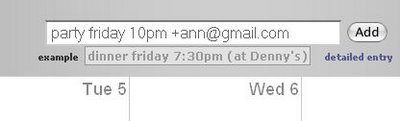 There are a lot of other neat tricks: adding "[some address]" will create a link to Google Maps, adding a "*" will prioritize events, adding "private" will make sure your buddies can't see that event unless specifically invited, etc. You can even add tags to your event. To share a calendar with your buddies, you can send invites to them to join 30 Boxes.
30 boxes also has a slick user interface for its webtop that resembles OS X's Aqua UI. 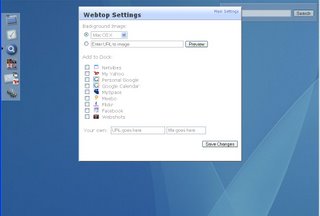 You can add links to MySpace, Flickr, Meebo, Google Calendar, and other sites to your dock. When you click on them, tiny windows open up allowing you to log-in to those sites. The webtop is kind of like a very specialized browser that allows you to quickly go to specific sites combined with a to-do list maker.
Go to 30 Boxes.
Labels: Technology


